 DocuLock
Home Guides Edit and sign a PDF
Edit and sign a PDF on iPhone
Updated 15 November 2026 · by the DocuLock team
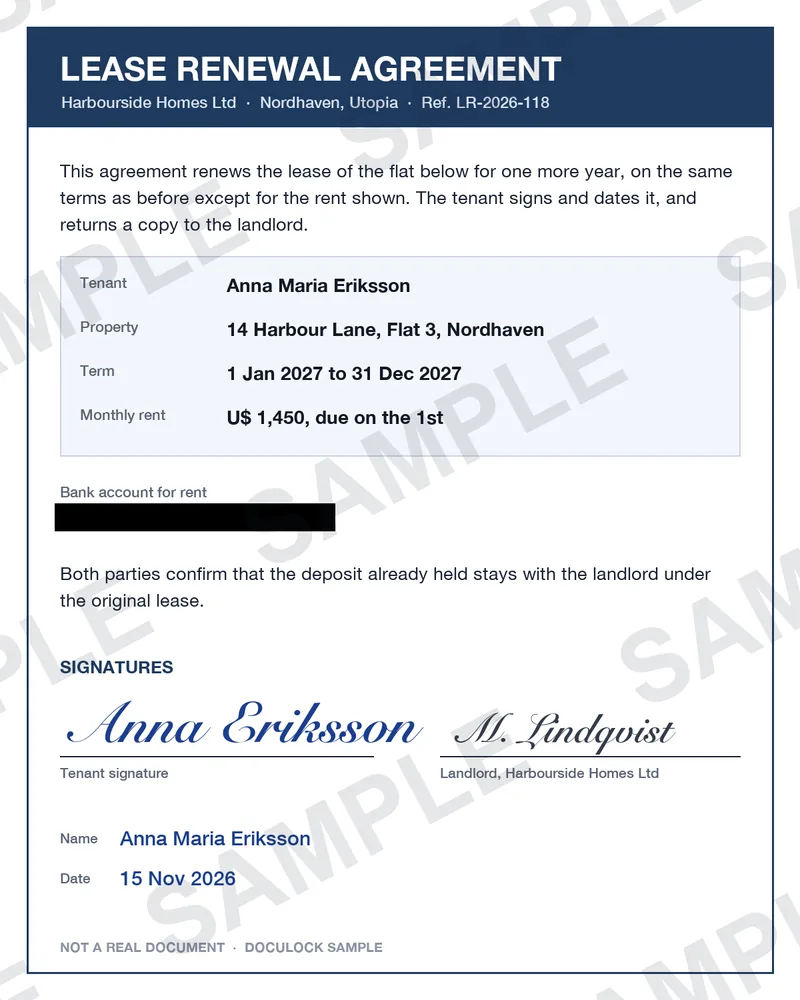
In short. Open the PDF in DocuLock with Copy to DocuLock from Mail, Files or Safari. Tap Sign to draw your signature and drag it into place, Text to add your name or today's date, and Tools, then Hide, to black out a number. Then Export: save one PDF, or share a secure link that expires, opens a set number of times, and can be revoked.
How do I get a PDF into DocuLock?
- From Mail, Files or Safari: open the PDF, tap the share button and choose Copy to DocuLock, or Save to DocuLock in the actions list.
- From paper: tap the camera button and choose Scan a document. Each page is straightened.
- From the app: tap the import button, then Document from Files.
The PDF is encrypted on your phone as it is saved, like everything else in the vault.
How do I sign it?
- Open the document. Its pages fill the screen.
- Tap Sign, draw your signature with a finger on the Sign here pad, and tap Use.
- Drag the signature onto the signature line, set its size with the Size slider, and tap Place signature.
- Tap Text for your name, initials or a date. The buttons under the box fill in today's date or the holder's name. Place it the same way.
Every change is saved at once, and an Undo button stays for a few seconds. Your signature is drawn for that page and not stored anywhere else.
How do I black out details?
Tap Tools, then Hide, and drag over an account number, an address or a date of birth. DocuLock replaces those pixels in the saved page, so the detail cannot be uncovered later. This is unlike a black box drawn in some PDF apps, which can be removed to show the text underneath.
What happens to the PDF's text?
To edit a PDF, DocuLock turns its pages into pictures first, and tells you before it does. The words are still read on your phone, so you can search for them and copy them, but you can no longer select text inside the exported PDF.
How do I send it back?
| Choice | What the other person gets |
|---|---|
| Export, Save as PDF | A normal PDF file. It is no longer encrypted once it leaves DocuLock, and the app says so first. |
| Export, Share a secure link | A read-only page that expires (an hour to a date you pick), opens a set number of times (five by default), can need an access code, and can be revoked. |
For a landlord or an employer who needs to keep the signed copy, send the PDF. For anyone who only needs to look, a link with limits is safer: their access ends on its own. See Share a document safely.
Related
DocuLock is coming to iPhone. Ask for early access and we will write when it is ready.
Questions
Can I sign a PDF on iPhone without uploading it to a signing service?
Yes. In DocuLock the PDF is signed on your phone and stored encrypted. Nothing is sent to a signing service.
Is a signature drawn in DocuLock legally binding?
DocuLock places a picture of your handwritten signature on the page, like signing a printout. Whether that is enough depends on the document and where you live; some contracts ask for a certified e-signature service.
Can I fill in a form?
Yes, with Text: type the words and place them on the line. DocuLock does not fill PDF form fields automatically.
Can I black out an account number before sending?
Yes. Tools, then Hide. The pixels are replaced in the saved page, so the number cannot be uncovered.